House Rabbit Community and Store



FORUM
What are we about? Please read about our Forum Culture and check out the Rules.
BUNNY 911 – If your rabbit hasn’t eaten or pooped in 12-24 hours, call a vet immediately! Don’t have a vet? Check out VET RESOURCES
The subject of intentional breeding or meat rabbits is prohibited. The answers provided on this board are for general guideline purposes only. The information is not intended to diagnose or treat your pet. It is your responsibility to assess the information being given and seek professional advice/second opinion from your veterinarian and/or qualified behaviorist.
BINKYBUNNY FORUMS
- This topic has 19sd replies, 10 voices, and was last updated 16 years, 11 months ago by
 .
.
Viewing 19 reply threads





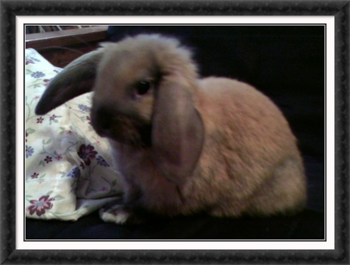
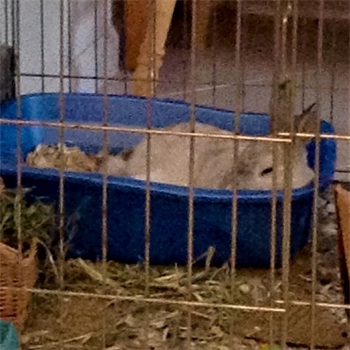
 This is what Jersey thinks of my instructions. She flopped over with boredom.


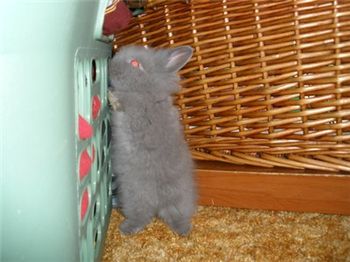



.jpg)
.jpg)

Viewing 19 reply threads
- You must be logged in to reply to this topic.